
Browser Plugin Vulnerabilities: Risks and Fixes
Browser plugins, also called browser extensions or add-ons, can supercharge your web experience. They block ads, manage passwords, translate pages, and more. But many Windows users don’t realize that these small tools can also open serious security holes on their devices. Understanding browser plugin vulnerabilities is one of the most overlooked steps in personal cybersecurity.
This guide breaks down the real risks, how attackers exploit them, and exactly what you can do to stay protected on Windows 10 and 11.
What Are Browser Plugin Vulnerabilities?
Browser plugin vulnerabilities are security weaknesses in browser extensions or add-ons that attackers can exploit to steal your data, hijack your browser, or install malware on your PC. Unlike the browser itself, which receives frequent security patches, plugins are often developed by third parties with little oversight, making them a prime attack surface.
Browser extensions are widely used, but many are built without strong security knowledge. This can lead to coding flaws that attackers can exploit. In Firefox, the risk is higher because extensions often have full user-level access, allowing them to access files and even run system processes if compromised.
Why Plugins Are a Security Risk
Plugins operate with elevated permissions inside your browser. Once installed, many can:
- Read and modify content on every website you visit
- Access your browsing history and cookies
- Intercept form data, including passwords and credit card numbers
- Communicate with external servers without your knowledge
When a plugin is poorly coded, abandoned by its developer, or outright malicious, those permissions become a gateway for attackers.
Common Types of Browser Extension Threats
- Malicious extensions – Fake or copycat plugins that disguise themselves as legitimate tools (e.g., a fake “PDF converter” that harvests your login credentials).
- Supply chain attacks – A legitimate plugin gets acquired by a bad actor who pushes a malicious update silently to all existing users.
- Outdated plugins with unpatched flaws – Old extensions with known security bugs that attackers actively scan for.
- Excessive permissions – Extensions that request far more access than they need, creating unnecessary risk.
- Cross-site scripting (XSS) via plugins – Vulnerable extensions that allow injected scripts to run on trusted websites.
How Attackers Exploit Browser Extensions
Data Theft and Session Hijacking
A compromised extension can silently read your session cookies, the tokens that keep you logged into sites like Gmail or your bank. With these cookies, an attacker can access your accounts without needing your password. This type of attack, known as session hijacking, requires no malware download; the extension itself becomes the weapon.
Man-in-the-Browser Attacks
Some malicious plugins sit between you and your bank’s website. They alter what you see on screen while changing what actually gets submitted, redirecting payments, or modifying transaction details invisibly. This is called a man-in-the-browser (MitB) attack and is especially dangerous for online banking users.
Cryptojacking
Certain rogue extensions silently use your CPU to mine cryptocurrency in the background. You may notice your computer running unusually slow or your fan spinning louder than normal; those are signs worth investigating.
Adware and Browser Hijacking
Some plugins redirect your searches, inject ads into web pages, or change your default homepage and search engine without permission. While less severe than data theft, these behaviors degrade your experience and may lead to phishing sites.
How to Fix and Prevent Browser Plugin Vulnerabilities on Windows 10/11
Strengthen Your PC Security with Fortect
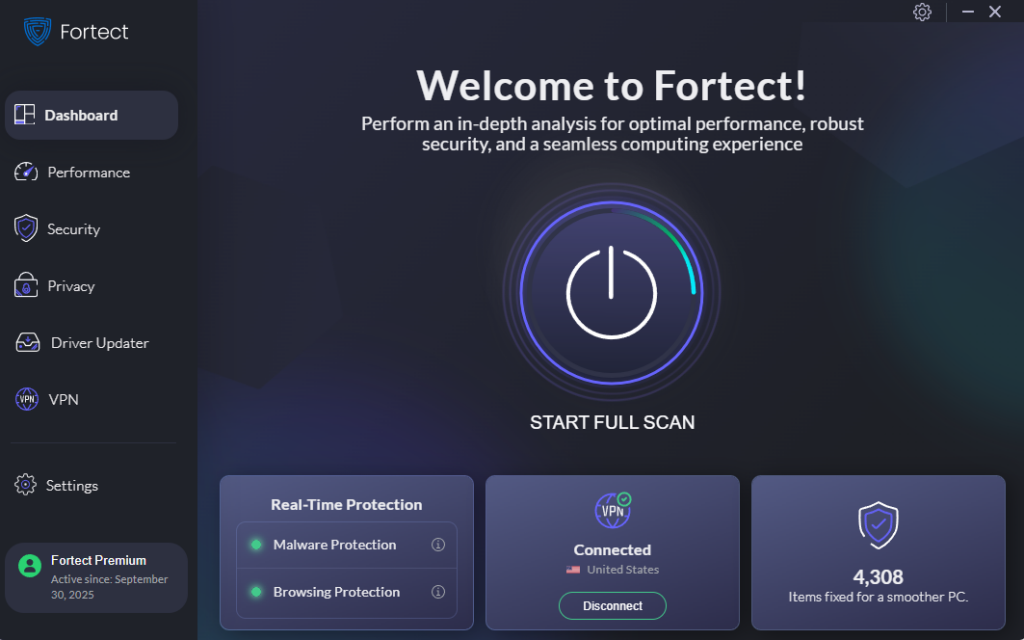
Fortect’s real-time malware protection continuously monitors your PC for suspicious activity triggered by compromised or malicious extensions, such as unauthorized data access, unexpected background processes, and malware payloads dropped through rogue plugins. If a vulnerable extension has already allowed malware onto your system, Fortect detects and removes those malicious files and restores any damaged system files, keeping your device secure and running efficiently. Think of it as a safety net that works quietly in the background while you focus on everything else.
Download and install Fortect now.
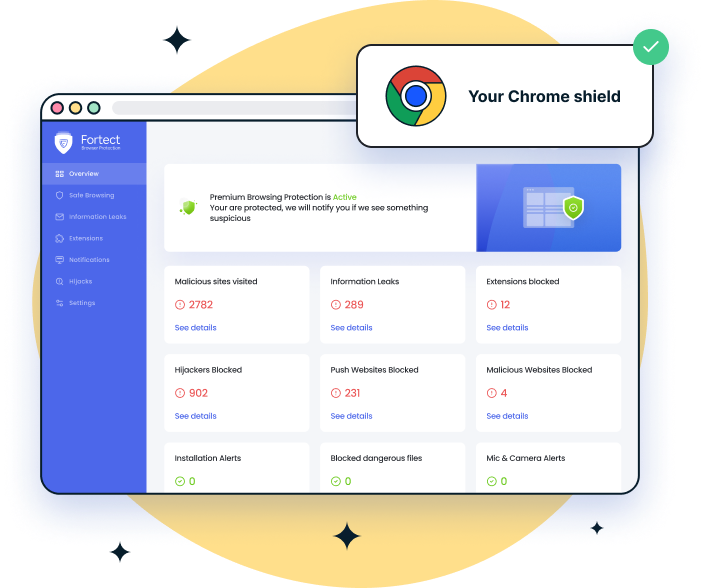
For Chrome users, this easy-to-use extension helps reduce risks from unsafe or compromised plugins. Fortect Browsing Protection adds an extra layer of security by blocking dangerous websites before they load, warning you about suspicious pages that may exploit vulnerable extensions, and identifying harmful plugins that could expose your data. This proactive approach helps prevent scams, reduces the chance of malicious plugin activity, and keeps your browsing environment safer.
Step 1: Audit Your Installed Extensions
The first step is knowing what’s already on your browser.
For Google Chrome:
- Open Chrome and click the three-dot menu in the top-right corner.
- Go to Extensions > Manage Extensions (or type chrome://extensions in the address bar).
- Review every extension listed. Remove anything you don’t recognize or no longer use by clicking Remove.
For Microsoft Edge:
- Click the three-dot menu and select Extensions.
- Click Manage Extensions or type edge://extensions in the address bar.
- Toggle off or remove unfamiliar extensions.
Firefox:
- Click the menu icon and choose Add-ons and Themes.
- Under Extensions, review each item and click the three-dot icon to Remove anything suspicious.
Step 2: Check and Restrict Extension Permissions
Even legitimate plugins can have excessive permissions. Tighten what each extension can access.
On Chrome/Edge:
- Go to chrome://extensions or edge://extensions.
- Click Details on any extension.
- Under Site access, change it from “On all sites” to “On specific sites” or “On click” where possible.
- Review the Permissions list — if an extension claims access to your clipboard, camera, or all websites and doesn’t need it, consider removing it.
Step 3: Keep Browser Extensions Updated
Outdated extensions are one of the most exploited entry points. Enable automatic updates.
On Chrome (Windows 10/11):
- Open Chrome and go to chrome://extensions.
- In the top-right corner, toggle on Developer mode.
- Click the Update button that appears — this forces an immediate update check for all installed extensions.
- Turn Developer mode off afterward.
Chrome auto-updates extensions by default when it updates itself. To make sure Chrome is current:
- Click the three-dot menu > Help > About Google Chrome.
- Chrome will automatically check for and install updates. Restart the browser when prompted.
On Microsoft Edge (Windows 10/11):
- Go to edge://extensions and toggle on Developer mode.
- Click Update to manually trigger updates.
- To update Edge itself: go to Settings and more > Help and feedback > About Microsoft Edge.
Step 4: Only Install Extensions from Official Sources
Never install browser plugins from random websites or pop-ups. Stick to:
- Chrome Web Store (chrome.google.com/webstore)
- Microsoft Edge Add-ons (microsoftedge.microsoft.com/addons)
- Firefox Browser Add-Ons (addons.mozilla.org)
Before installing anything, check the number of reviews, the publisher’s name, the date of last update, and the permissions it requests. If an extension hasn’t been updated in over a year, consider whether you really need it.
Step 5: Use Windows Security and a Reputable Antivirus
Windows Defender, built into Windows 10 and 11, can detect some malicious browser extensions — especially those associated with known malware families. Keep it active.
To verify Windows Defender is running (Windows 10/11):
- Press Windows key + I to open Settings.
- Go to Privacy & Security > Windows Security.
- Click Virus & threat protection.
- Ensure Real-time protection is toggled On.
- Run a Quick scan regularly, or a Full scan if you suspect something is wrong.
Step 6: Enable Enhanced Safe Browsing in Chrome
Chrome’s Enhanced Safe Browsing mode provides stronger protection against malicious extensions and phishing sites.
- Open Chrome and go to Settings.
- Click Privacy and Security > Security.
- Under Safe Browsing, select Enhanced protection.
Additional Security Tips for Windows Users
- Restart your browser regularly — Some malicious scripts only run while the browser session is open.
- Use a dedicated browser profile for sensitive activities like banking, with no extensions installed.
- Be wary of “extension update” pop-ups that appear on websites — these are almost always fake. Updates come through the browser itself, not pop-ups.
- Review extension permissions after updates — Sometimes a new version of a plugin requests new permissions that weren’t there before. That’s a red flag.
Conclusion
Browser plugin vulnerabilities are a real and underappreciated threat to everyday Windows users. The good news is that most of the fixes are simple: audit what you have installed, cut unnecessary permissions, keep everything updated, and install only from trusted sources. A few minutes of review today can prevent a significant security incident tomorrow.
Stay cautious, stay updated, and treat every browser extension the same way you’d treat an app you’re downloading, because that’s exactly what it is.
Related Reads:



